Setting up Sublevels For Live Ops Updates
in Meta Horizon Worlds Desktop Editor
Related Links:
Building Expansive World with World Streaming MHCP Workshop Video
When to use:
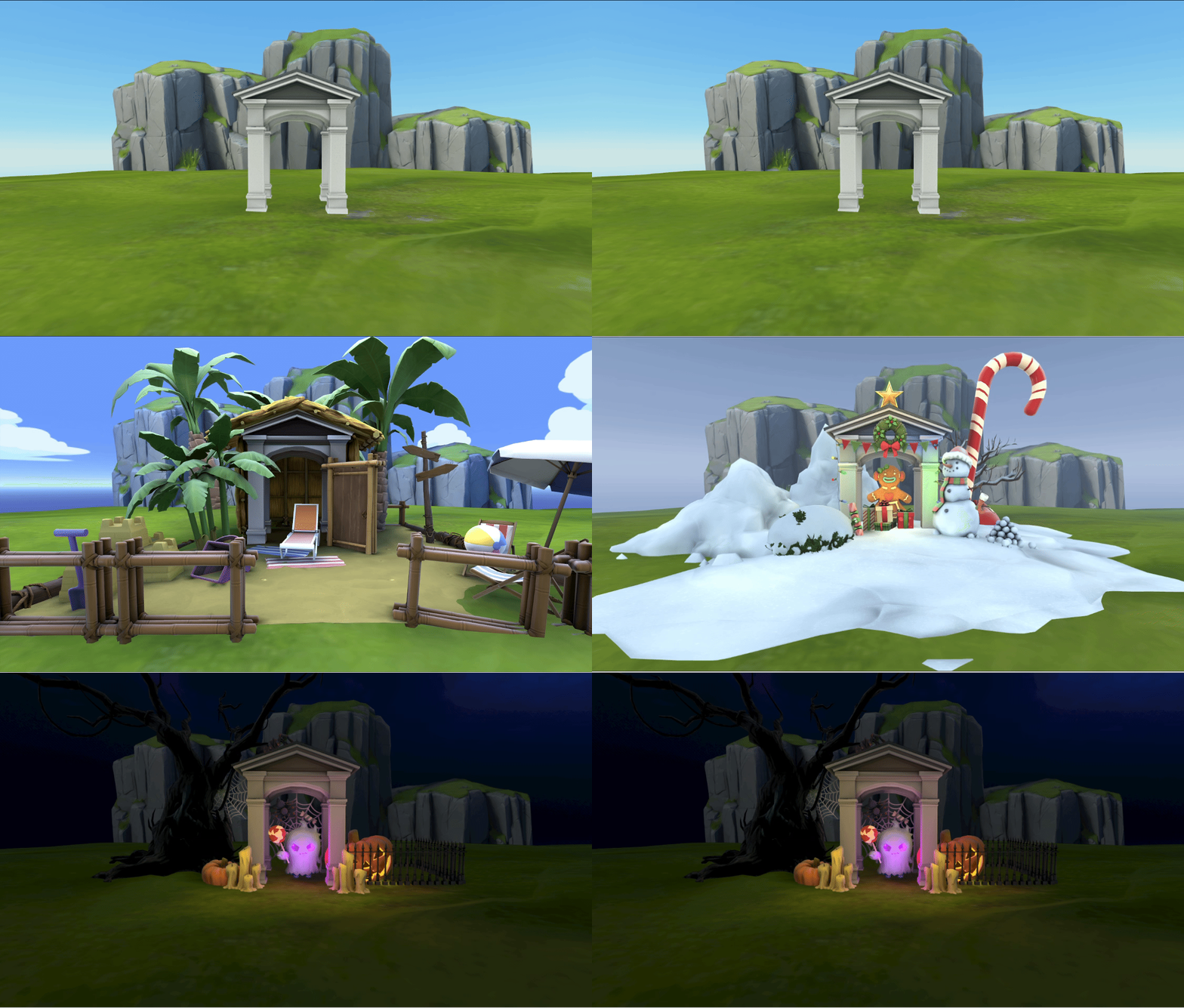
Sublevels are useful for bringing in seasonal environment content or to test out layouts without committing. World streaming allows for the dynamic loading and unloading of sublevels, which will not be covered here. The main method shown here requires no coding.
Let’s start with the world you plan to load content INTO (Main World):
While in edit mode:
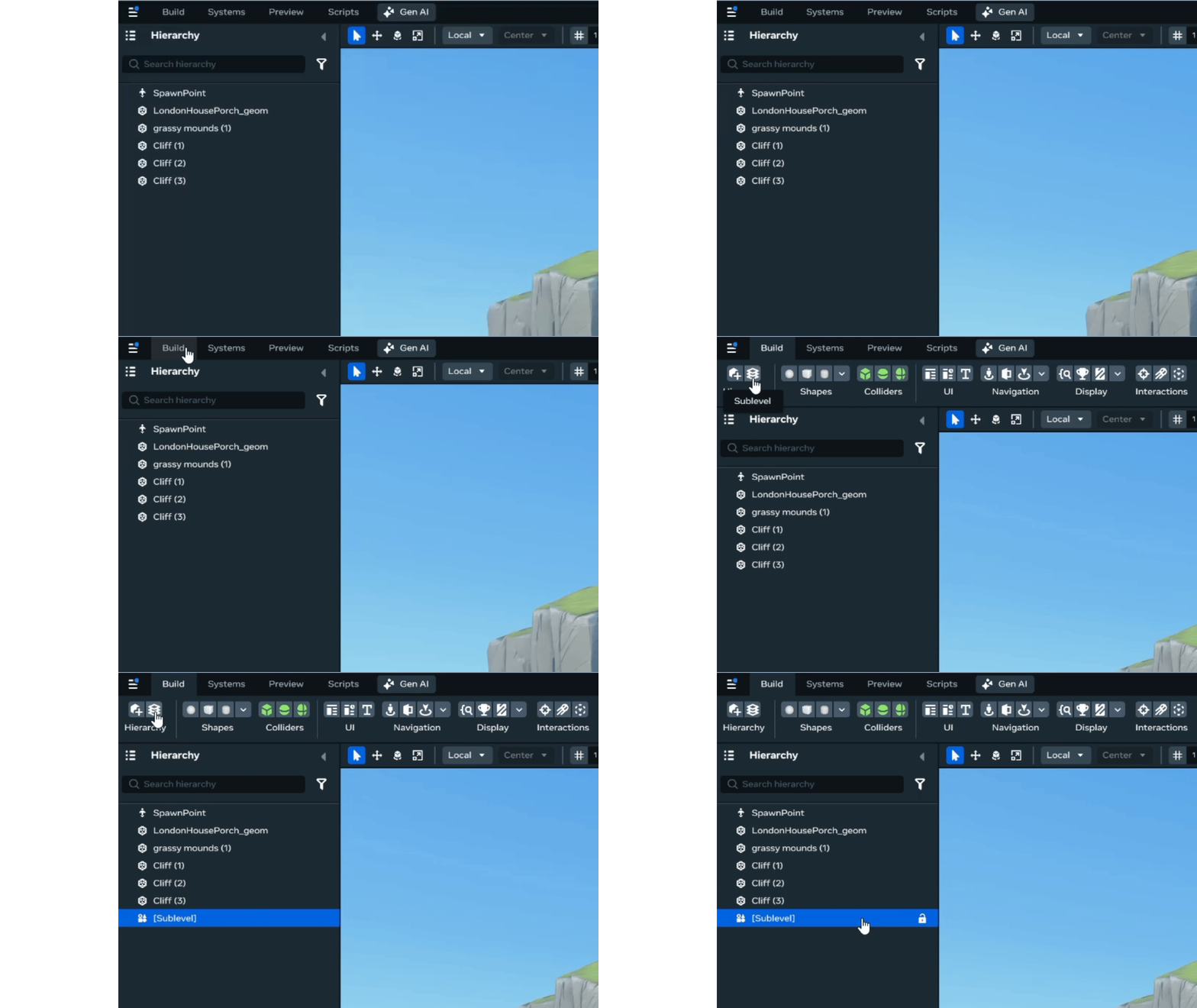
- Add a sublevel gizmo to the world using the build menu in the upper left hand side
- In the gizmo’s property panel, set the position and rotation to (0,0,0) to place at the worlds center
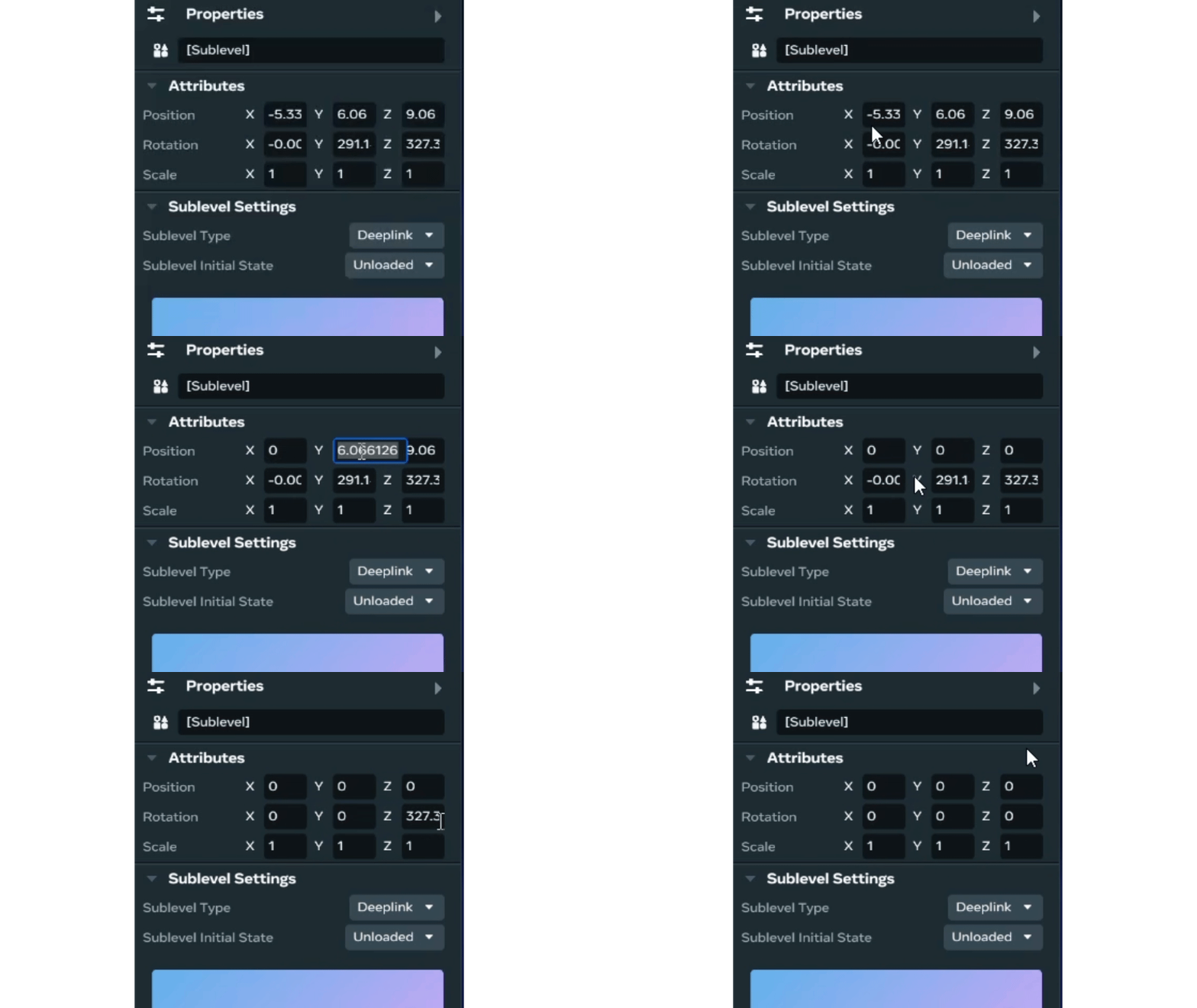
We set the template and sublevel gizmo’s to a position and rotation of (0,0,0) as a way to anchor them in world space. This way you know your scene will correctly align when loaded in your main world.
Back in the main menu:
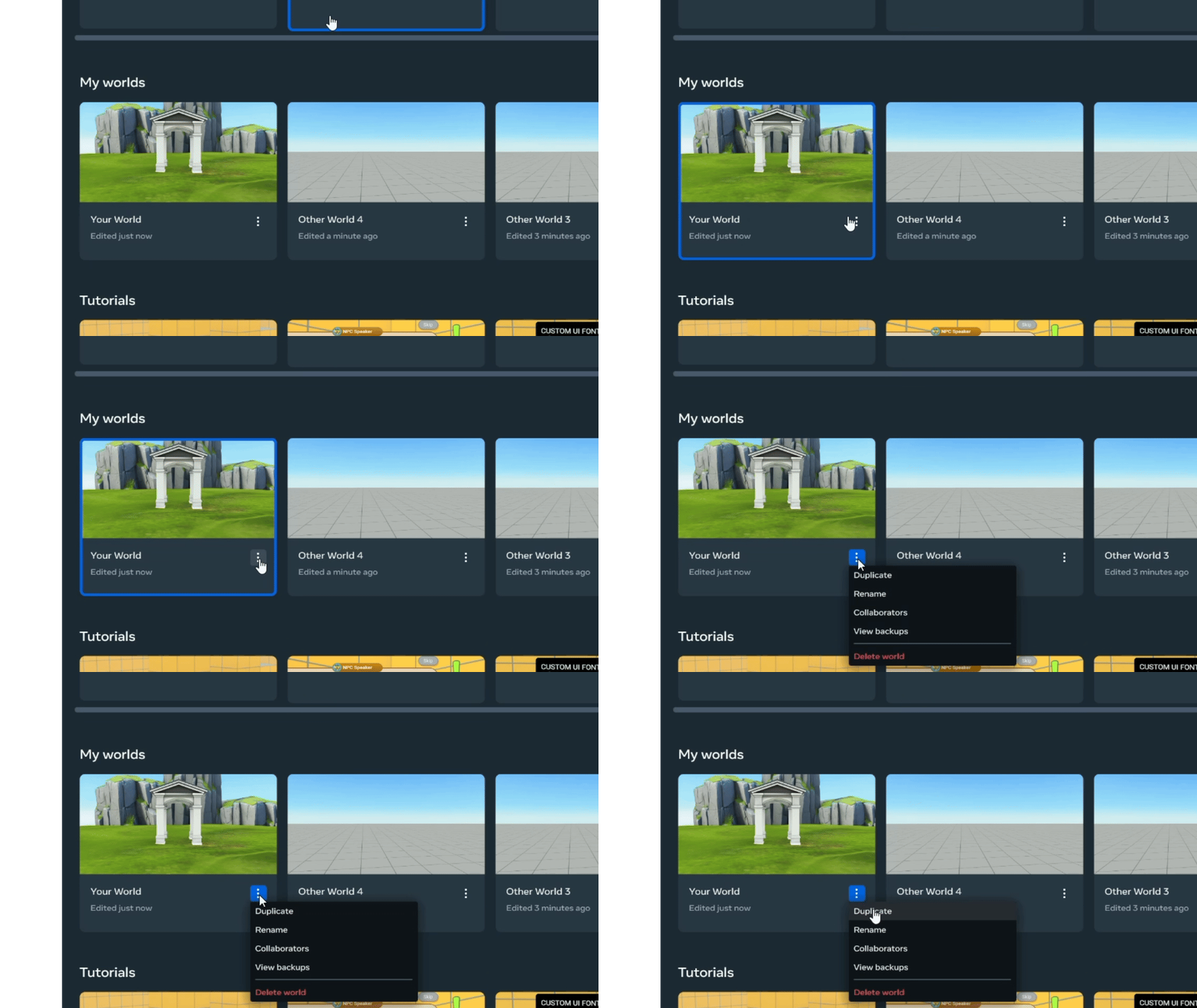
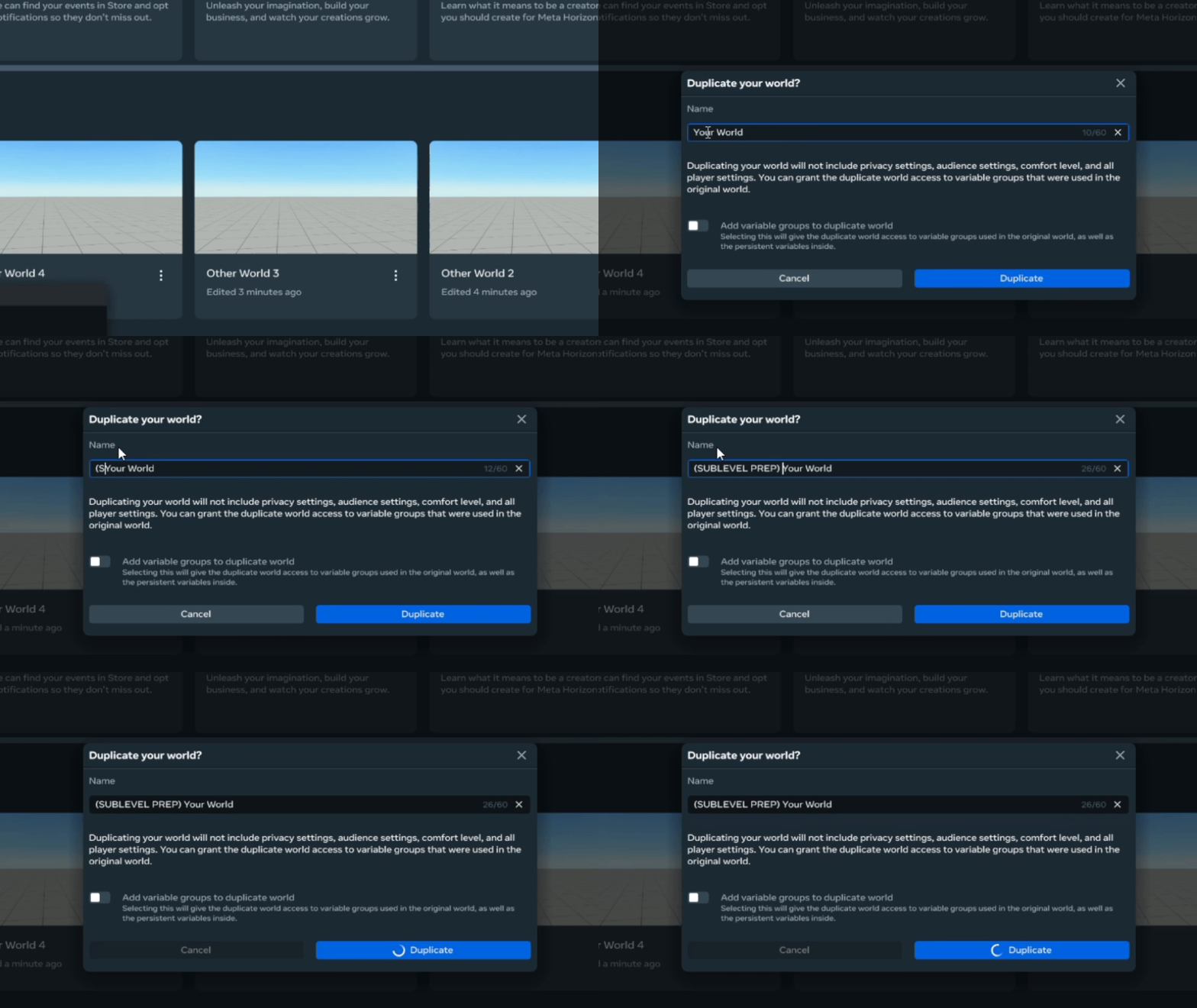
- Click the three dots on the thumbnail of your main world
-
Select “Duplicate” to make a clone of your main world
-
Rename your clone world with a name that includes a descriptor of its purpose (Ex: (Sublevel Prep) Your Main World’s Name)
Tip: Putting the purpose at the front of the name will make it easy to tell apart from your main world
Let’s start prepping the cloned world:
In the edit mode of the cloned world:
To clean up the hierarchy:
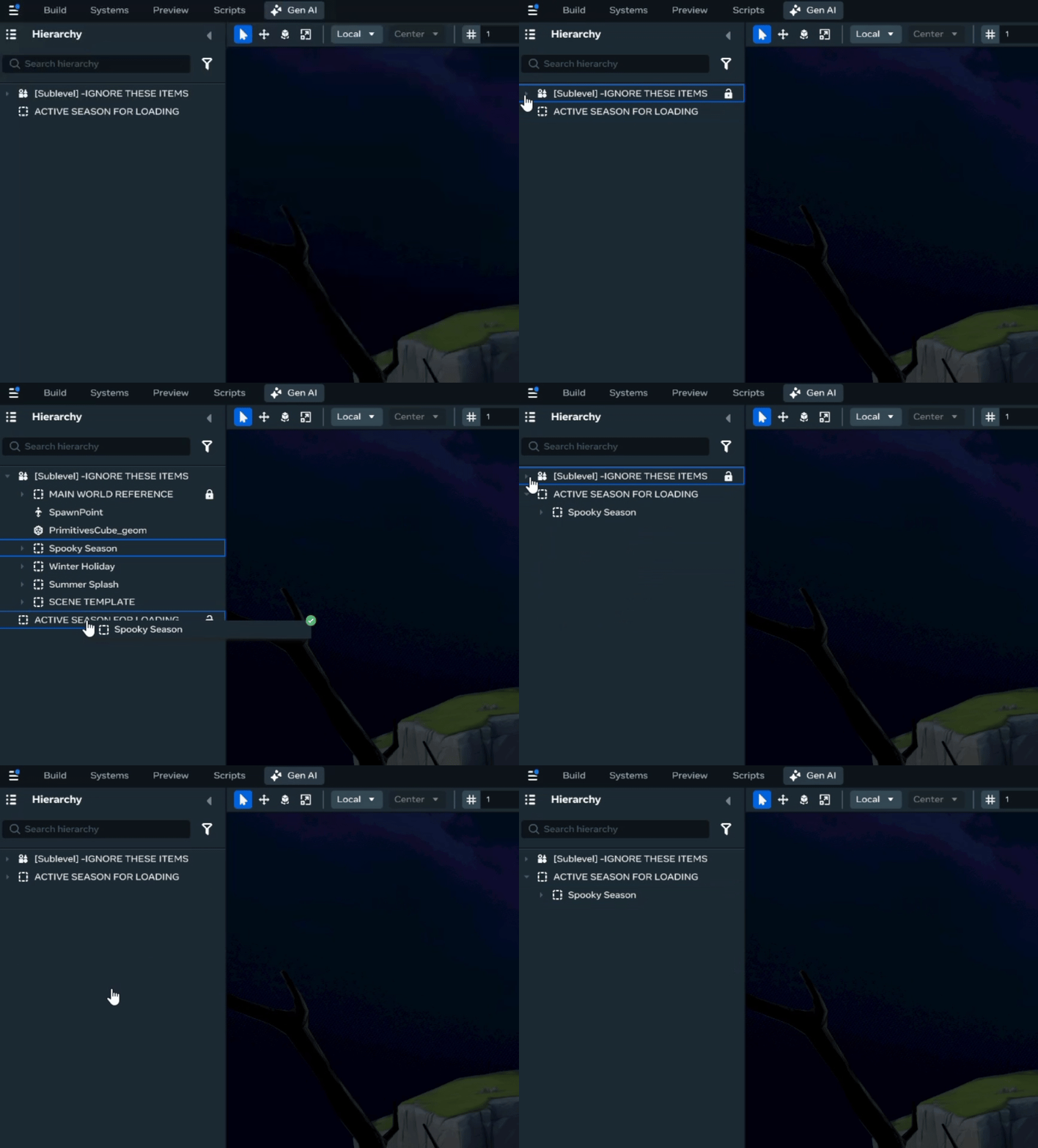
- Drag and drop any items from the MAIN WORLD onto the sublevel gizmo in the hierarchy
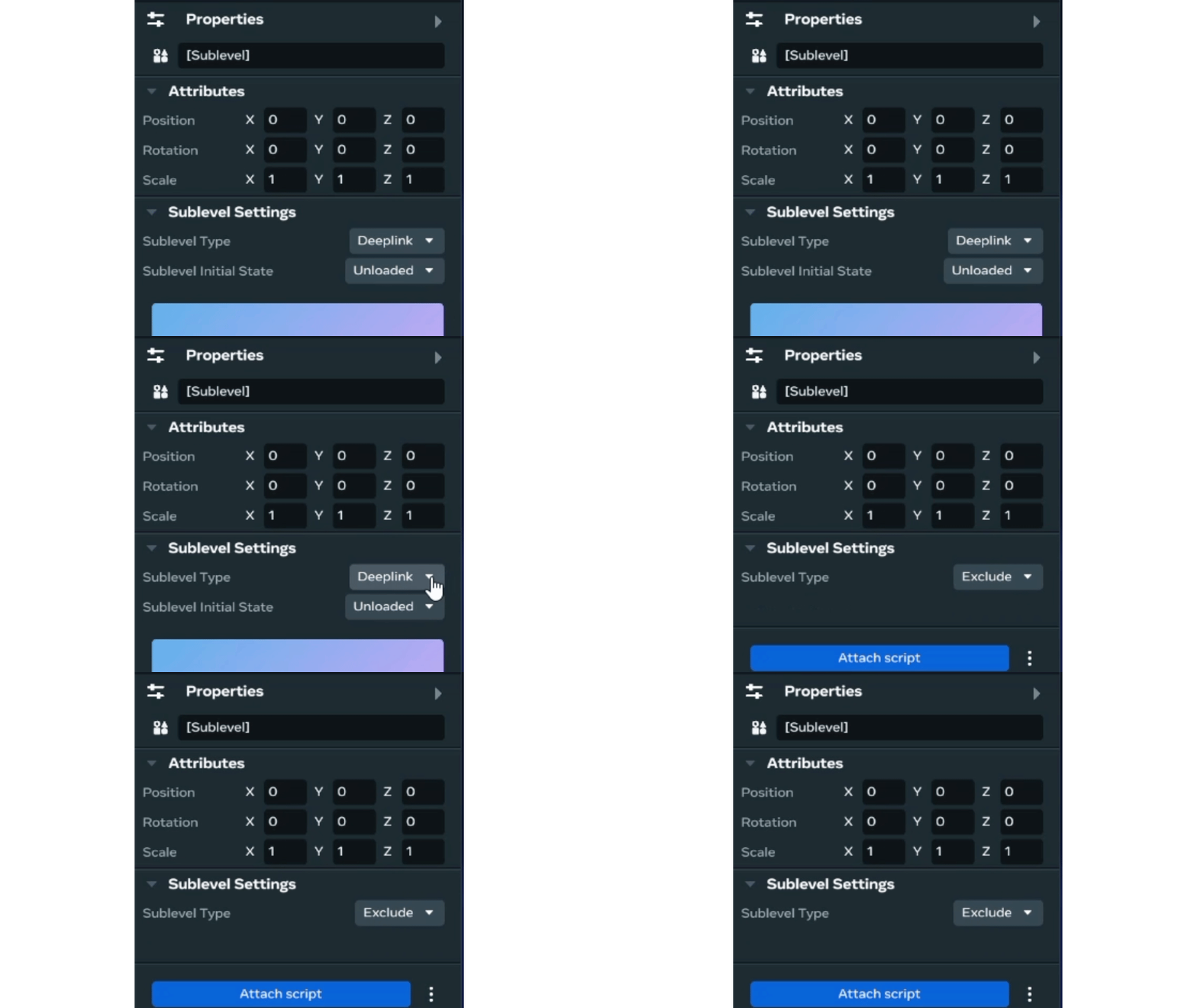
- Select the sublevel gizmo in the hierarchy to access its properties panel
- In the property panel, set the Sublevel Type to “Exclude”
CRITICAL STEP: Anything that’s set as the child of a sublevel gizmo that’s set to “Exclude”, will not load into the main world.
Let’s create a test scene to finish the setup:
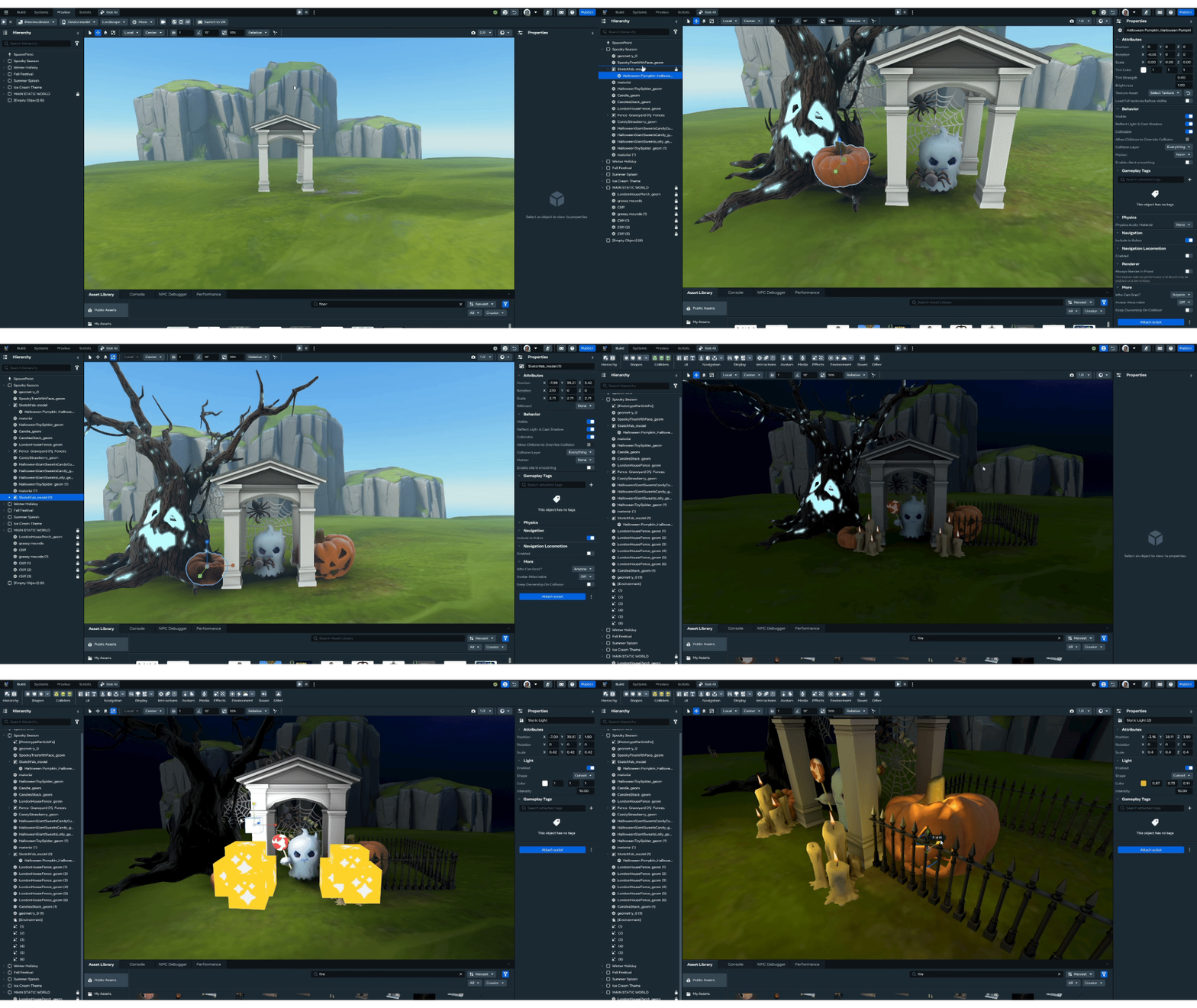
- Find some assets and set a scene to load in
-
Drag and drop those assets OUTSIDE of your sublevel gizmo to keep make sure they will load into the main world
-
Publish the cloned world as unlisted
CRITICAL STEP: The world has to be published for the scene to load in the main world. Be sure to republish any updates you want to show up.
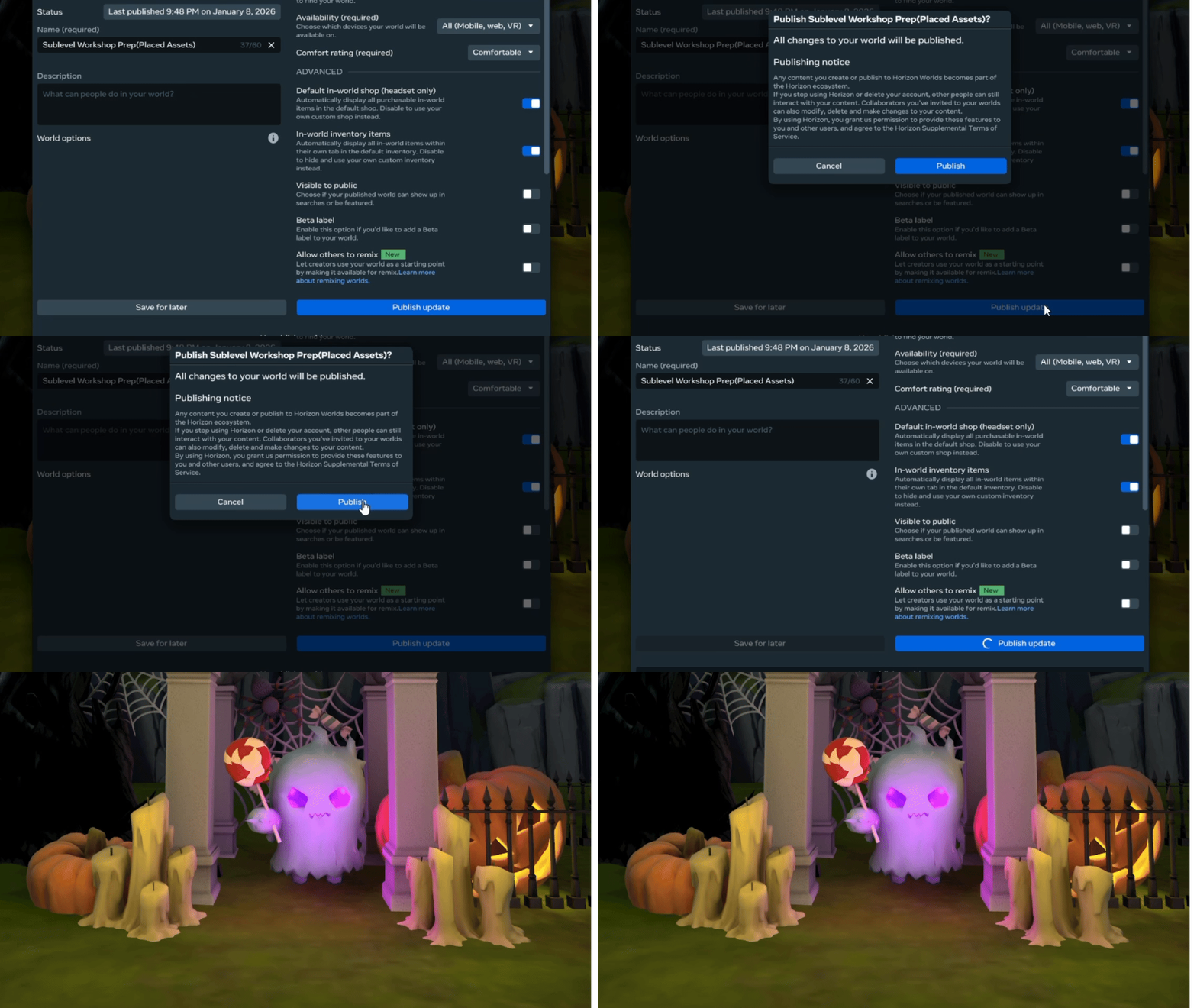
The next 3 steps are how to retrieve the clone world’s world ID, continue with step 22 if you already know how to.
- Open the editor menu and select “Launch My Horizon Creations”
- Find the cloned world and open its world page
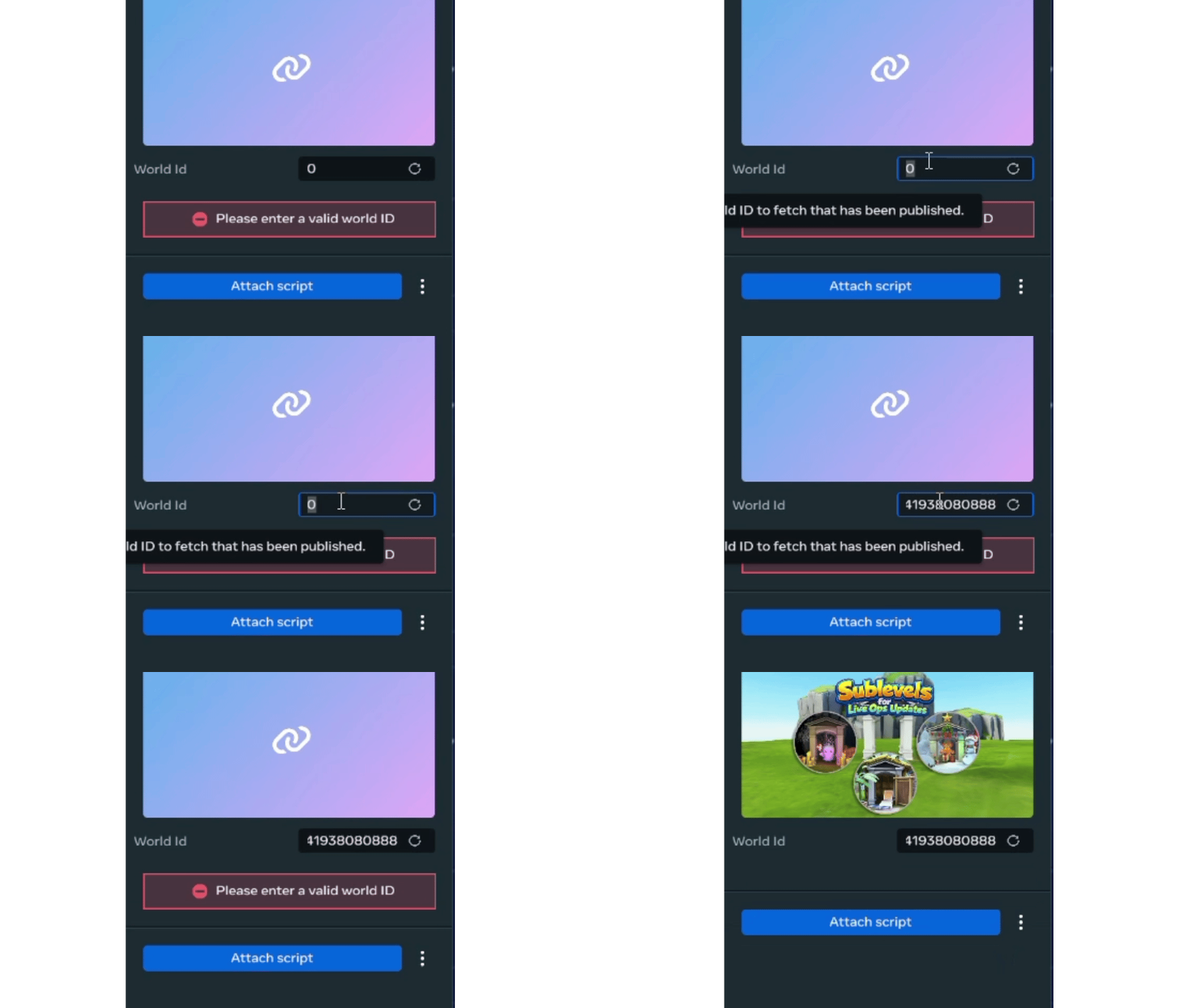
- Click on its world ID to copy it to your clipboard
Let’s finish things up back in the main world:
In edit mode of your main world:
- Select the sublevel gizmo in the hierarchy to access its properties panel
- In the property panel, set the Sublevel Type to “Deeplink”
- Set the Sublevel Initial State to “Active”
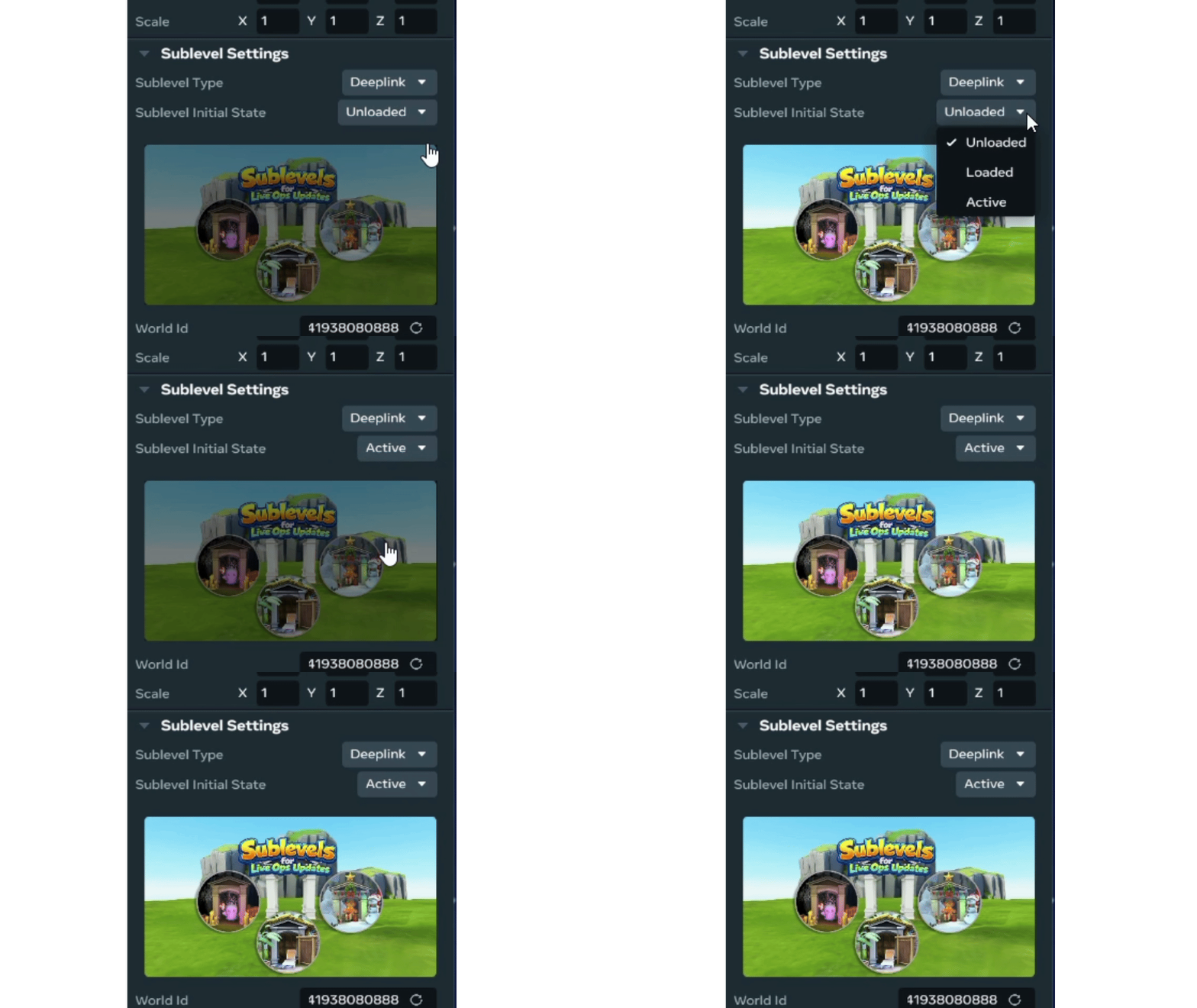
- Paste the clone world’s ID into the World ID filled
You should see your scene load into your world, aligned as it was in your cloned world.
Publish your main world when you’re ready to have the updates go live.
Congratulations! Your worlds are connected and ready to use for updates. Just edit the cloned world and republish the clone. The published main world will automatically have the new content via the gizmo.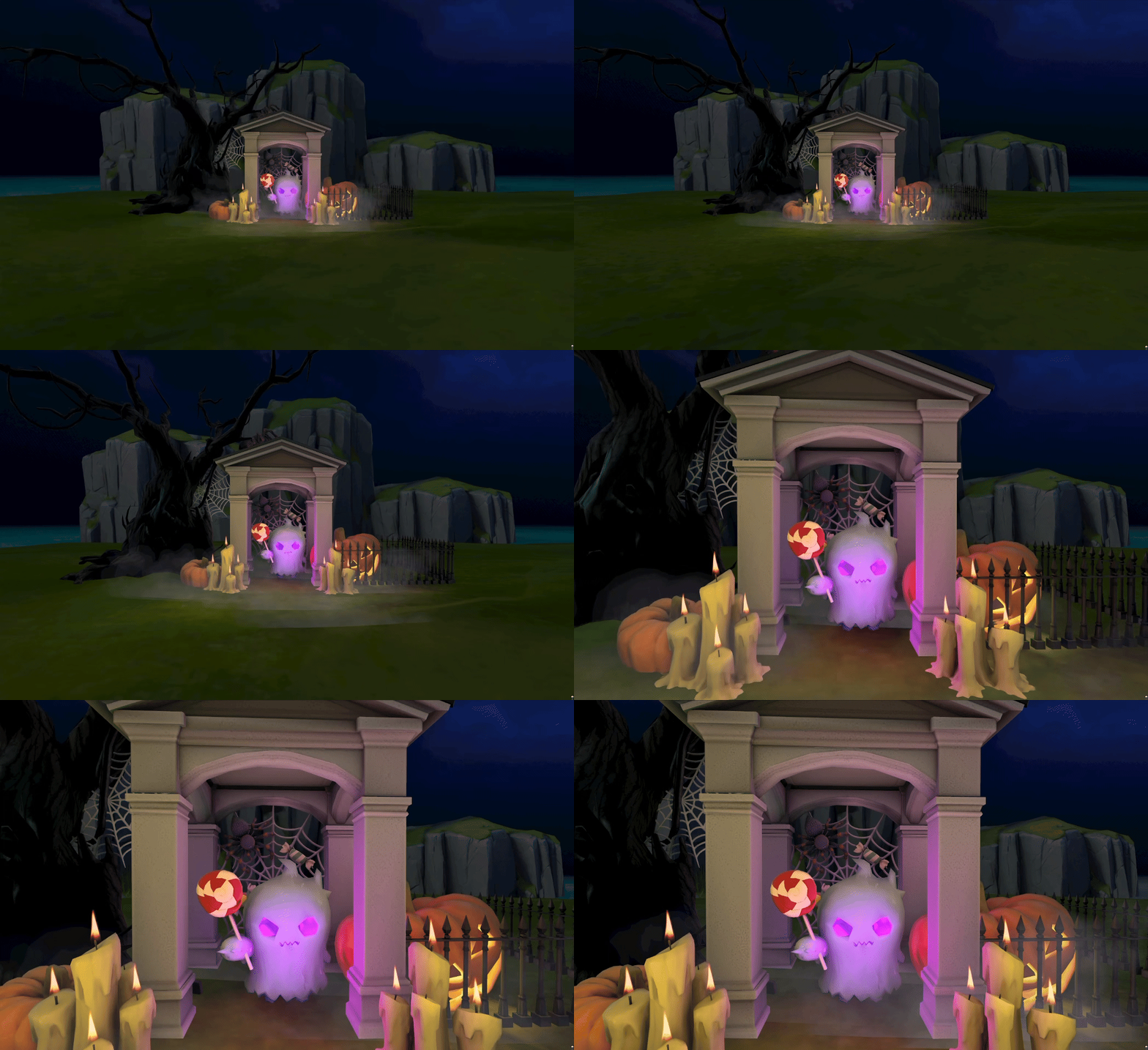
Bonus: World Streaming
World streaming allows you to dynamically load and unload your sublevel(s) as needed.
Check out this workshop video to learn more: Building Expansive Worlds with World Streaming | Horizon Worlds