Using Asset Templates in Horizon Worlds: Street Lights
Sahil (thesloppyguy)
September 4, 2025
Introduction
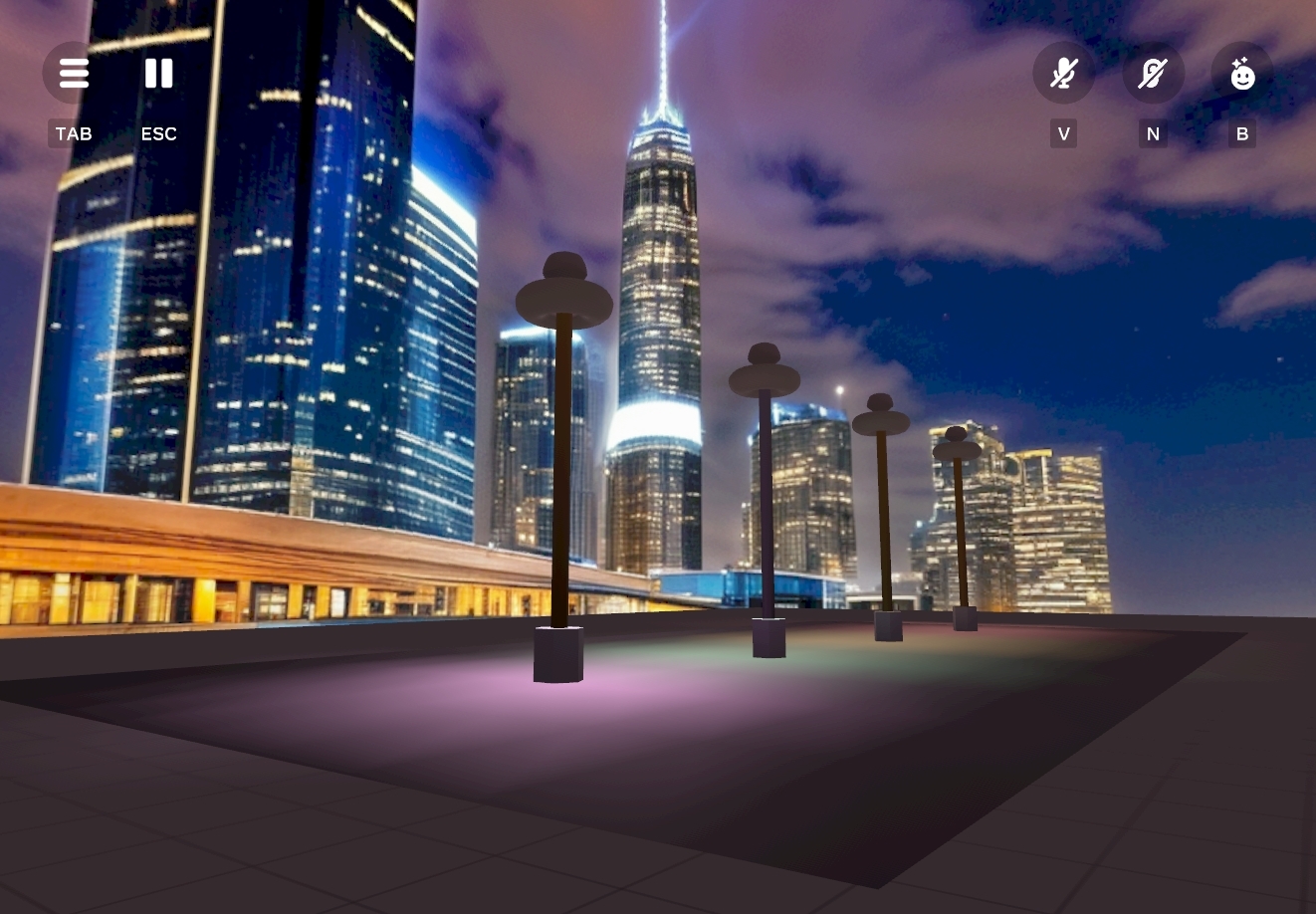
This tutorial will walk you through using Asset Templates in Horizon Worlds, focusing on a practical example: creating reusable street lights that can be toggled when a user is within a certain area and starts changing light.
By the end, you’ll understand:
- How Asset Templates differ from Unity Prefabs.
- When and why to use templates.
- How to create, edit, and publish templates.
- How to attach and propagate script updates across worlds.
- How to manage and maintain version control for the asset template.
Prerequisites and Expectations
You should be familiar with:
- Horizon Worlds’ basic editor (adding objects, shapes, and scripts).
- How to work with File-Backed Scripts (FBS).
- General knowledge of prefabs in Unity (optional, but helpful for comparison).
Topic One: What Makes Asset Templates Special?
Asset Templates are like prefabs on steroids:
- They bundle objects, scripts, and behaviors into one reusable asset.
- You can spawn as many copies as you want.
- When you update the template, changes propagate to every instance in every world.
How They Differ from Unity Prefabs
| Feature | Unity Prefabs | Horizon Asset Templates |
|---|---|---|
| Scope | Single project | All your worlds |
| Change Propagation | Updates instances in current project | Updates instances across all worlds |
| Versioning | No built-in version history | Built-in version control and rollback |
| Property Overrides | Limited per instance | Explicit overrides with push/revert flow |
When to Use Templates
Use Asset Templates when:
- You want reusable objects across multiple worlds (streetlights, furniture, NPCs).
- You expect to update objects later and want changes to sync everywhere.
- You want per-instance customization (e.g., different light colors per streetlight).
⚡ Street Light Example: Imagine a city scene with 100 street lights. If you later decide to make the lights brighter, you don’t want to update each one by hand. With templates, you just update once and publish.
Topic Two: Walkthrough – Street Lights
Now let’s build an interactive street light using Asset Templates.
Step 1 – Create the Base Asset
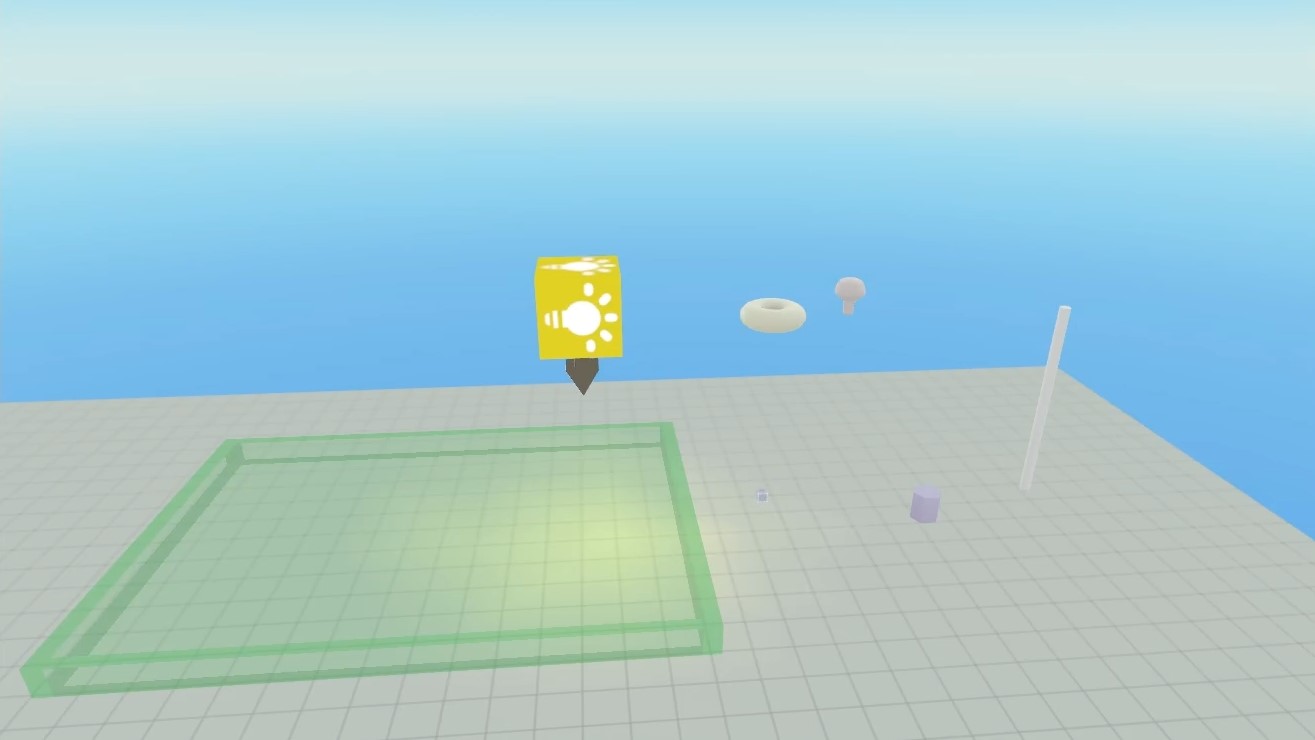
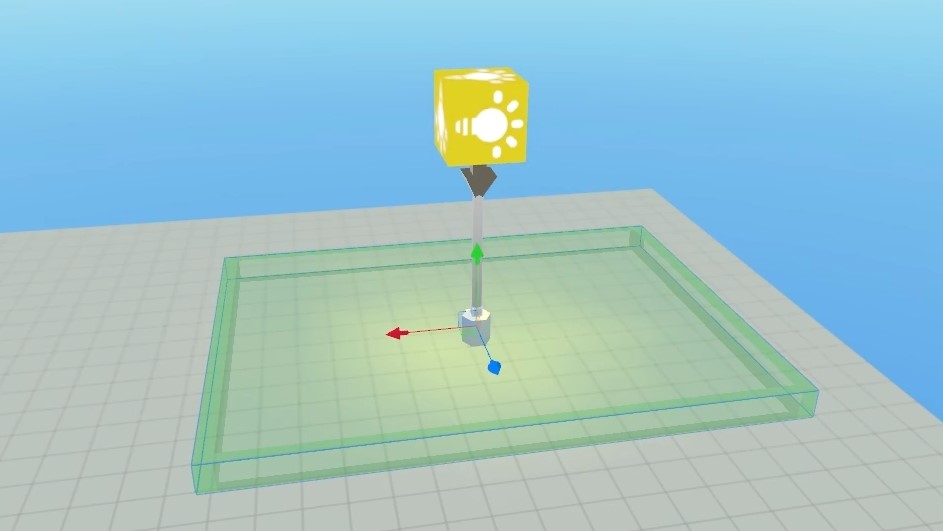
- Create the basic street light
- Add a Hexagon Cylinder for the base of the pole
- Add a Cylinder (pole) and a Bulb (lamp head).
- (optional) Add a Torus around the Bulb to make it unique and stick out.
- Add a Light Gizmo to the Bulb. (We are using dynamic lights for spot lights. Note: While static lights offer better performance, they cannot be modified at runtime, so we use dynamic lights here to enable color changes during gameplay.)
- Add an Empty Block for Trigger Controller for managing light state.
- Add a Trigger Zone for users to interact with the light.
Components
End Result
Step 2 – Add the Script
Before we show the code, you’ll need to create two scripts:
- TriggerBroadcaster script - This will be attached to the Trigger Zone to detect when players enter and exit.
- LightColorChanger script - This will be attached to the Controller Block to handle the light color changes.
Here are the File-Backed Scripts (FBS) for toggling the light:
// Trigger Broadcast Script
import { Component, PropTypes, NetworkEvent, CodeBlockEvents, Player, Entity } from 'horizon/core';

// Define the network events. These should match the event names used by any receiving scripts.
const PlayerEntered = new NetworkEvent('PlayerEntered');
const PlayerExited = new NetworkEvent('PlayerExited');

export class TriggerBroadcaster extends Component<typeof TriggerBroadcaster> {
  static propsDefinition = {
    // The entity that will receive the network events.
    target: { type: PropTypes.Entity },
  };

  private playerCount: number = 0;

  override preStart() {
    // Connect to the trigger event that fires when a player enters.
    this.connectCodeBlockEvent(
      this.entity,
      CodeBlockEvents.OnPlayerEnterTrigger,
      (player: Player) => {
        this.handlePlayerEnter(player);
      }
    );

    // Connect to the trigger event that fires when a player exits.
    this.connectCodeBlockEvent(
      this.entity,
      CodeBlockEvents.OnPlayerExitTrigger,
      (player: Player) => {
        this.handlePlayerExit(player);
      }
    );
  }

  override start() {
    // No initialization needed in start for this script.
  }

  private handlePlayerEnter(player: Player) {
    this.playerCount++;

    // If this is the first player to enter the trigger, send the event.
    if (this.playerCount === 1) {
      if (this.props.target) {
        this.sendNetworkEvent(this.props.target, PlayerEntered, {});
      } else {
        console.error("TriggerBroadcaster: 'target' prop is not set.");
      }
    }
  }

  private handlePlayerExit(player: Player) {
    this.playerCount--;

    // If this was the last player to leave the trigger, send the event.
    if (this.playerCount === 0) {
      if (this.props.target) {
        this.sendNetworkEvent(this.props.target, PlayerExited, {});
      } else {
        console.error("TriggerBroadcaster: 'target' prop is not set.");
      }
    }
  }
}

Component.register(TriggerBroadcaster);
// Trigger Handler Script
import { Component, PropTypes, NetworkEvent, DynamicLightGizmo, Color } from 'horizon/core';

// Define the network events. These should match the events sent by the trigger script.
const PlayerEntered = new NetworkEvent('PlayerEntered');
const PlayerExited = new NetworkEvent('PlayerExited');

export class LightColorChanger extends Component<typeof LightColorChanger> {
  static propsDefinition = {
    // The light entity that will change color.
    light: { type: PropTypes.Entity },
  };

  private originalColor?: Color;
  private lastColor?: Color;
  private colorChangeInterval?: number;
  private lightGizmo?: DynamicLightGizmo;

  override preStart() {
    // Listen for the 'PlayerEntered' network event to start the color changes.
    this.connectNetworkEvent(this.entity, PlayerEntered, () => {
      this.startColorChange();
    });

    // Listen for the 'PlayerExited' network event to stop the color changes.
    this.connectNetworkEvent(this.entity, PlayerExited, () => {
      this.stopColorChange();
    });
  }

  override start() {
    if (this.props.light) {
      this.lightGizmo = this.props.light.as(DynamicLightGizmo);
      if (this.lightGizmo) {
        // Store the original color of the light when the script starts.
        this.originalColor = this.lightGizmo.color.get();
      } else {
        console.error("StaticLightChanger: The provided 'light' entity is not a DynamicLightGizmo.");
      }
    } else {
      console.error("StaticLightChanger: 'light' prop is not set.");
    }
  }

  private startColorChange() {
    // Clear any existing interval to prevent duplicates.
    if (this.colorChangeInterval) {
      this.async.clearInterval(this.colorChangeInterval);
    }

    // Start a new interval to change the color every 1 second.
    this.colorChangeInterval = this.async.setInterval(() => {
      this.setRandomColor();
    }, 1000);
  }

  private stopColorChange() {
    // Clear the interval.
    if (this.colorChangeInterval) {
      this.async.clearInterval(this.colorChangeInterval);
      this.colorChangeInterval = undefined;
    }
    // Freeze on the last color instead of restoring original color.
    this.freezeOnLastColor();
  }

  private setRandomColor() {
    if (!this.lightGizmo) return;

    // Create a new random color.
    const randomColor = new Color(Math.random(), Math.random(), Math.random());
    this.lightGizmo.color.set(randomColor);
    // Store the last color for freezing when player exits.
    this.lastColor = randomColor;
  }

  private freezeOnLastColor() {
    if (!this.lightGizmo || !this.lastColor) return;

    // Freeze on the last color that was set.
    this.lightGizmo.color.set(this.lastColor);
  }

  override dispose() {
    // Ensure the interval is cleared if the component is destroyed.
    if (this.colorChangeInterval) {
      this.async.clearInterval(this.colorChangeInterval);
    }
  }
}

Component.register(LightColorChanger);
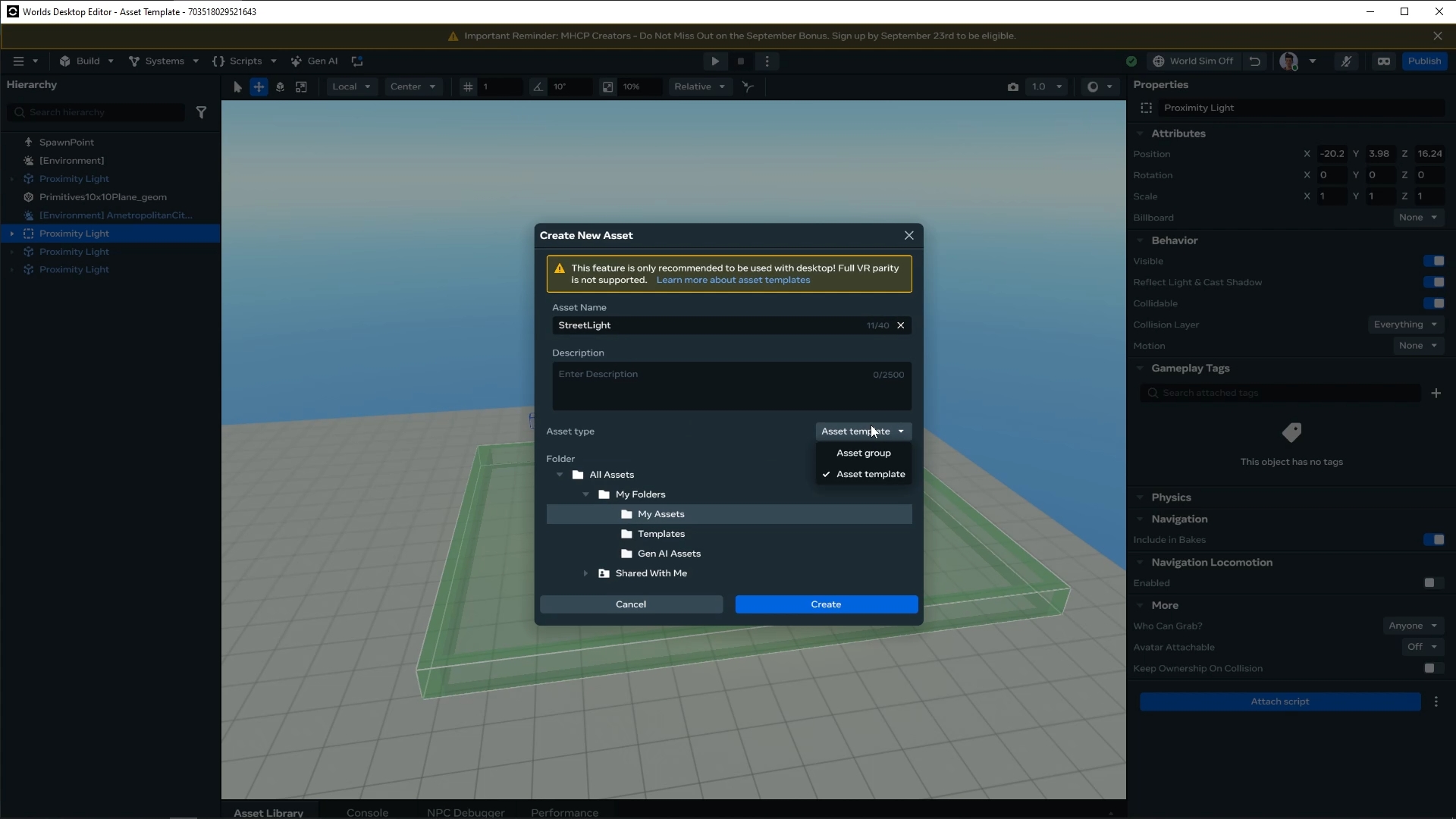
Step 3 - Create Template
-
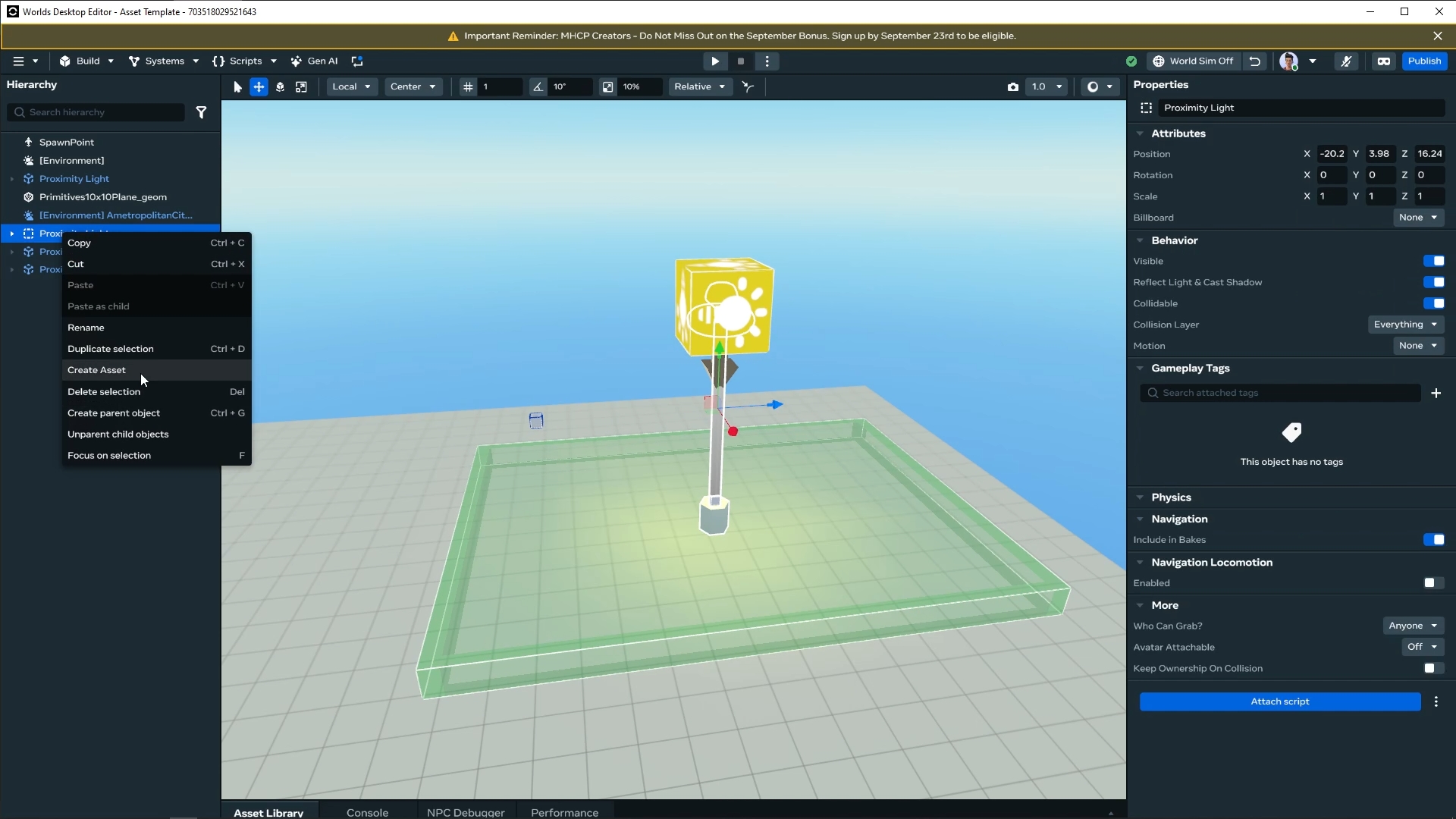
Group them into an Asset Template (right-click → Create Asset → choose Template).
-
Rename it “Street Light” and Create.
Step 4 - Attach Script and Test
- Attach Trigger Broadcast Script to the Trigger Zone and provide the Controller block as an argument.
- Attach Handler Script to the Controller Block and provide the Light Gizmo as an argument.
- Press P and test out the interaction and performance.
Step 5 – Publish the Template and Spawn a Clone
- Edit the template definition and description.
- Save → Publish.
- Go to your Templates and Find the asset.
- Drag and Place the Asset and test the same.
Video Guide for Template Creation
Step 6 – Property Overrides
Want different colored lights?
- Place several instances of your Street Light.
- Override the color property on each Dynamic Light Gizmo (blue dot means override).
- Overrides stay even if you later update the script.
Step 7 - Version Control
- For every change you are prompted with notes asking if you want to publish the same.
- It is up to you what changes you would like to push across all your instances and worlds.
- Once you have selected the changes you can confirm and add a description for the same.
- Push and all the instances will be updated.
- On another world if the assets are not up to date you will see a button on the top right to update and see the changes.
- You can also edit the template directly from the Edit Template option.
Video Guide for Template Management
Topic Three: Future Steps and Exercise
Now that you have the basics down, here is a sample exercise for you.
- Create a world with a lot of rocks (you can use environment generator).
- Create a template for the rocks and try the following:
- Change color and size of the rocks from the main template.
- Override some of the rocks to get variation.
- Add script to the rock to play sound in proximity of player (crickets or rocks falling with a low percentage chance).
- Publish some changes and test if instances are updated.